
13 June 2026
OpenOCD is a tool allowing one to communicate with a hardware
debugging probe. A common way of obtaining it is through a source
specific to your operating system such as apt if using
Debian. However, package managers only support a past release that is
stable, which means you may be missing newer features or support.
Unfortunately, OpenOCD suffers from this, and new users may wonder why a
board they’re trying to use is not available even though it may seem
like it is available according to other sources.
Another reason may be the board isn’t under a name the user may expect initially, and some further digging may be required to find out what configuration files are needed. However, this is a different issue, and more related to finding the proper information rather than a lack of support from an older version. We’ll touch on this too, but it’s not the main reason for this write up.
To avoid going down the rabbit hole of how one may figure all this out, we’ll keep the discussion here simply about how to check if the main openocd release through apt supports your board. If not, we’ll cover one easy method to get the most recent version using xPack.
For information on how we figured this out, you can come back to see if we’ve written up that portion of a guide. For now though, it is shelved since there are far more interesting things we’d like to do.
aptThe easiest method to install OpenOCD is using the apt
commands below
user@randomsignals:~$ sudo apt update
user@randomsignals:~$ sudo apt install openocd
However, at the time of this writing, we see the version is pretty old
user@randomsignals:~$ openocd -v
    Open On-Chip Debugger 0.12.0
    Licensed under GNU GPL v2
    For bug reports, read
        http://openocd.org/doc/doxygen/bugs.html
because we can see that openocd-0.12.0 was released back on 14 January 2023, by looking at their sourceforge repo and checking the details on the latest tagged release.
Now, in our case, we were trying to use an STM32C031C6 based Nucleo
64 board, using the Nucleo’s on board STLinkV2-1. For our system, the
openocd files we need to check are installed in
/usr/share/openocd/scripts.
user@randomsignals:~$ ls /usr/share/openocd/scripts
    bitsbytes.tcl
    board
    chip
    cpld
    cpu
    fpga
    interface
    mem_helper.tcl
    memory.tcl
    mmr_helpers.tcl
    target
    test
    tools
The interface directory contains the configuration files
for the debug probes, and the target directory ones for the
STM32 MCUs. Listing out each shows support for the STLink (it is
recommended to use the stlink.cfg over the
stlink-v2-1.cfg) but no support for the STM32C031C6, which
would be expected to show as stm32c0x.cfg based on the
observed naming conventions.
user@randomsignals:~$ ls /usr/share/openocd/scripts/interface | grep stlink
    stlink.cfg
    stlink-dap.cfg
    stlink-v1.cfg
    stlink-v2-1.cfg
    stlink-v2.cfg
user@randomsignals:~$ ls /usr/share/openocd/scripts/target | grep stm32
    stm32f0x.cfg
    stm32f1x.cfg
    stm32f2x.cfg
    stm32f3x.cfg
    stm32f4x.cfg
    stm32f7x.cfg
    stm32g0x.cfg
    stm32g4x.cfg
    stm32h7x.cfg
    stm32h7x_dual_bank.cfg
    stm32l0.cfg
    stm32l0_dual_bank.cfg
    stm32l1.cfg
    stm32l1x_dual_bank.cfg
    stm32l4x.cfg
    stm32l5x.cfg
    stm32mp13x.cfg
    stm32mp15x.cfg
    stm32u5x.cfg
    stm32w108xx.cfg
    stm32wbx.cfg
    stm32wlx.cfg
    stm32x5x_common.cfg
    stm32xl.cfg
That’s a bummer!
So, what do we do then? Well, one thing we should do is check if there is in fact support for the chip we want by looking at their main master branch, located here on their sourceforge page, or on their github page.
The github page is a little easier since you can search for a filename, so we’ll do that. As you can see in the screenshot below, there is in fact a file for our MCU!
Great, but how do we get this? Build from source? Well, we could, but
there’s a better way - xPack. xPack releases build from recent branches,
and do not rely on using the latest official/tagged release. If we go to
their site and search for
openocd we find the latest release here.
The release notes tell us what commit they used to build it, as of
this writing, we see it is commit
e5888bda38f4952e2ae92f7dc5b25fc9a2d1c2b3.
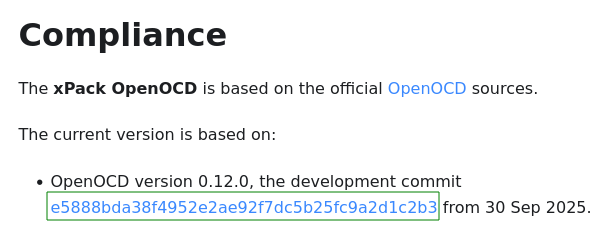
How do we check if that has what we want though?
Hot Tip: To view a specific commit’s full snapshot on GitHub you can use a url of the form as shown in the screenshot below from this StackOverflow post.
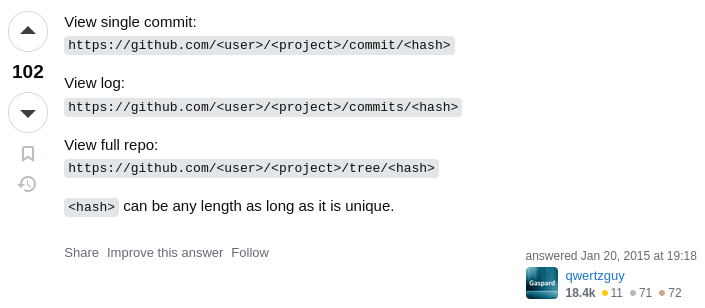
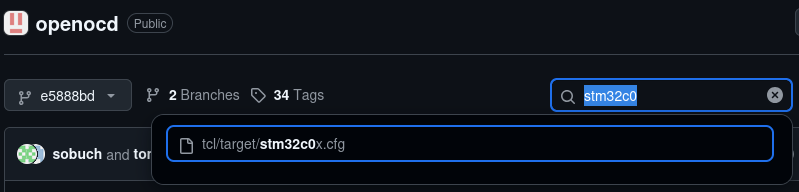
And so let’s go ahead and check if the commit used in the xPack
release has the file we want. We’ll visit
https://github.com/openocd-org/openocd/tree/e5888bda38f4952e2ae92f7dc5b25fc9a2d1c2b3
and search for the file. We see it is in fact in that release in the
screenshot below.
Sweet! Then we’re basically done! Using the xPack release is as
simple as using xpm, or if you want to avoid installing
more software just to get software, then you can download the release
directly from their github release for it, as they note on their
page.

If we go to that release
and download the appropriate file (for us it is the
linux-x64.tar.gz file) along with it’s SHA256 Sum file we
can follow a few simple steps. Note, the following commands assume the
tar.gz and tar.gz.sha file are both in the
Downloads folder. The -c flag lets
sha256sum check the tar.gz.sha contents for
files with matching names in the same directory to ensure the hash
matches the one given in the tar.gz.sha file.
For us that involved running:
user@randomsignals:~$ cd ~/Downloads
user@randomsignals:~/Downloads$ sha256sum -c xpack-openocd-0.12.0-7-linux-x64.tar.gz.sha
xpack-openocd-0.12.0-7-linux-x64.tar.gz: OK
That output tells us the hash was valid, so we should be good. The
xPack is all self contained, so one only needs to unpack, in our case
that involved running the following commands. Note, this will extract it
in your Downloads folder, you can move it where you like
before or after.
user@randomsignals:~/Downloads$ tar xvzf xpack-openocd-0.12.0-7-linux-x64.tar.gzNote, the xvzf flags stand for
e(x)tract (v)erbose g(z)ip (f)ile.
Now, we of course want to verify we have everything we need. Let’s look in the new folder the extraction made.
user@randomsignals:~/Downloads$ cd xpack-openocd-0.12.0-7-linux-x64
user@randomsignals:~/Downloads/xpack-openocd-0.12.0-7-linux-x64$ ls
    bin
    distro-info
    libexec
    openocd
    README.md
The bin folder contains the executable, and the target
and interface files we mentioned before are in
openocd/scripts. We can check that and also see if it runs
and what version we have to verify. Then we can double check that it has
the proper target file as well.
user@randomsignals:~/Downloads/xpack-openocd-0.12.0-7-linux-x64$ ls bin
    total 4.2M
    -rwxr-xr-x 1 user user 4.2M Oct  4  2025 openocd

user@randomsignals:~/Downloads/xpack-openocd-0.12.0-7$ ./bin/openocd -v
xPack Open On-Chip Debugger 0.12.0+dev-02228-ge5888bda3-dirty (2025-10-04-22:42)
Licensed under GNU GPL v2
For bug reports, read
    http://openocd.org/doc/doxygen/bugs.html

user@randomsignals:~/Downloads/xpack-openocd-0.12.0-7-linux-x64$ ls openocd/scripts
    total 84K
    -rw-r--r--  1 user user 1.7K Oct  4  2025 bitsbytes.tcl
    drwxr-xr-x 10 user user  20K Oct  4  2025 board
    drwxr-xr-x  5 user user 4.0K Oct  4  2025 chip
    drwxr-xr-x  2 user user 4.0K Oct  4  2025 cpld
    drwxr-xr-x  4 user user 4.0K Oct  4  2025 cpu
    -rw-r--r--  1 user user  962 Oct  4  2025 file_renaming.cfg
    drwxr-xr-x  2 user user 4.0K Oct  4  2025 fpga
    drwxr-xr-x  6 user user 4.0K Oct  4  2025 interface
    -rw-r--r--  1 user user 1021 Oct  4  2025 mem_helper.tcl
    -rw-r--r--  1 user user 4.4K Oct  4  2025 memory.tcl
    -rw-r--r--  1 user user 2.1K Oct  4  2025 mmr_helpers.tcl
    drwxr-xr-x 10 user user  12K Oct  4  2025 target
    drwxr-xr-x  2 user user 4.0K Oct  4  2025 test
    drwxr-xr-x  2 user user 4.0K Oct  4  2025 tools
user@randomsignals:~/Downloads/xpack-openocd-0.12.0-7-linux-x64$ ls openocd/scripts/target | grep stm32c0
    stm32c0x.cfg
There we have it, a version we can now use.